Maxim Money Mobile
Maxim Money Mobile
Maxim Money Mobile is the companion app to Maxim Money for Windows. It puts your accounts, transactions and portfolios on your iPhone, iPad or Android phone, and keeps them in step with your computer through your own cloud storage.
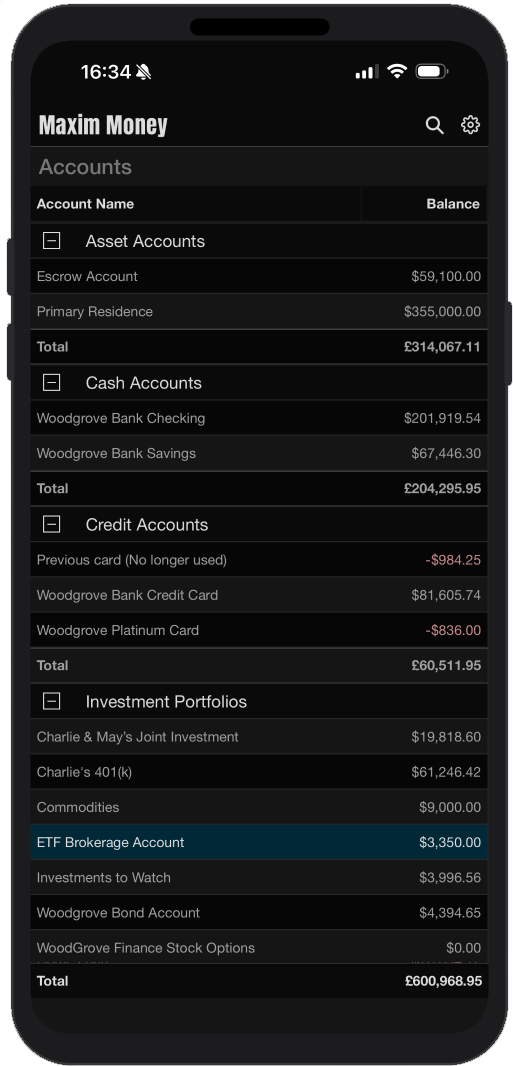
What you can do
The app shows the same data as Maxim Money on your desktop computer. Any changes you make on the go flow back to to the desktop, next time you open your file.
- See your accounts at a glance, grouped as they are in Maxim Money, with totals for each group and overall in your base currency. Rotate your phone or tablet sideways to see each balance as of today and including future transactions.
- Work in your registers. Add, edit and delete transactions, with payees, categories, memos and references. Amount fields have a built-in calculator.
- Make transfers. Tap a transfer's arrow to jump to the other account.
- Split transactions into groups. Tap Split on a payment or deposit to make it a group, add members with Add Member, and the group's total is kept as the sum of its members.
- Search everything. Find transactions by payee, memo or amount, narrow the search by category, and see the total of what you found.
- Follow your investments. See your portfolios and holdings, and fetch the latest prices on your phone for up-to-date values. Prices fetched on the phone stay on the phone.
- Work offline. Changes are kept and sent the next time you are connected.
What you need
- Maxim Money for Windows, with the data file you want on your phone. Your computer stays the home of your data: the app works from what it sends.
- An iPhone, iPad or Android phone or tablet, with Maxim Money Mobile installed from the App Store or Google Play.
- Somewhere for the two to meet, signed in to the same account on both:
- your own Dropbox, Google Drive or OneDrive (a free account is enough), or
- a WebDAV folder, such as one on Nextcloud, a home NAS, pCloud or Koofr.
- A sync password that you choose, used to encrypt your data. You type the same one on your computer and on your phone.
Connecting the app to your computer
Set up Maxim Money on your computer first, so that your data is waiting when the phone connects. Both must use the same service, the same account and the same sync password.
On your computer
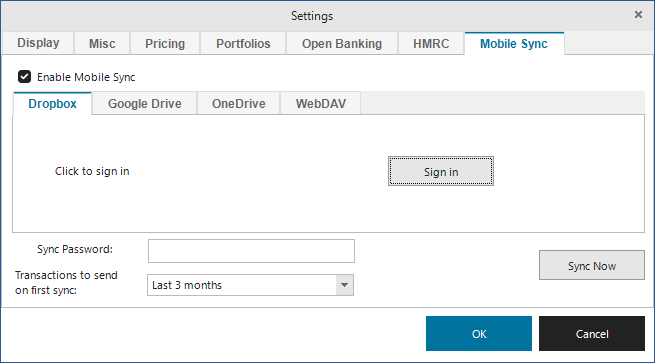
- Open the data file you want on your phone in Maxim Money.
- Open Settings and choose the Mobile Sync tab.
- Tick Enable Mobile Sync.
- Choose where to sync:
- Dropbox, Google Drive or OneDrive: choose its tab and press Sign in. Your browser opens the service's own sign-in page; sign in and allow Maxim Money access. Maxim Money is only given its own folder, and cannot see anything else in your storage.
- WebDAV: choose its tab and enter the folder's full address (starting https://), your user name and password.
- Enter a Sync Password. Choose one you will remember: it cannot be recovered, and without it the synced files cannot be read.
- Choose how much history to send under Transactions to send on first sync, from the last month to everything.
- Press OK, then press Sync Now on the Mobile Sync tab, and save your data file. Your data is sent once the file is saved.
On your phone or tablet
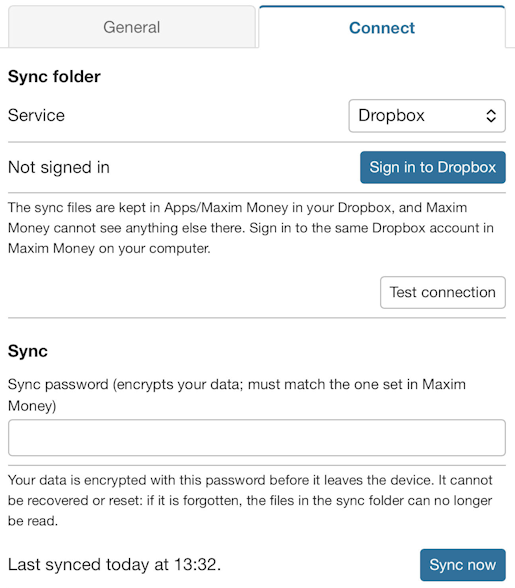
- Open Maxim Money Mobile and tap the gear icon at the top right to open Settings, then choose the Connect tab.
- Under Sync folder, choose the same Service as on your computer.
- Sign in:
- Dropbox, Google Drive or OneDrive: tap Sign in and sign in to the same account as on your computer.
- WebDAV: enter the same folder address, user name and password, then tap Test connection to check them.
- If you sync more than one data file through the same account, choose this one under Data file. With only one, it is chosen for you.
- Under Sync, enter the same Sync password as on your computer.
- Tap Sync now.
The first sync loads everything your computer sent, and the status beside Sync now shows how far it has got. A large file can take a few minutes: keep the app open until it finishes. Your accounts then appear on the main screen.
Syncing day to day
Once connected, syncing happens automatically; Sync Now (computer) and Sync now (phone) are there for when you want to transfer the data immediately.
- Your computer syncs after you open your data file and after you save it, at most every few minutes. It applies changes made on your phones, then sends its own once the file is saved, so changes you discard by closing without saving never reach your phone.
- Your phone syncs when you open the app, when you come back to it after a few minutes away, and shortly after you add or change something.
- Changes made on both sides: the most recent change to each detail wins. If the same detail was changed on both since the last sync, the phone keeps its own and lists the other under Settings > Connect for you to review and choose between.
- Prices fetched on your phone stay on your phone. Your computer fetches its own.
Keeping your data private
Your data never passes through Wildfire Software, and nobody without your sync password can read it.
- Encrypted before it leaves. Your computer and phone encrypt everything with your sync password (AES-256) before sending it, so your cloud provider stores only unreadable files.
- Your sync password cannot be recovered. Nobody, including Wildfire Software, can reset it or read your files without it. If you forget it, choose a new one on your computer and start the sync folder again (see Troubleshooting).
- Encrypted on the phone too. The app's own copy of your data is encrypted on the device.
- Lock the app. Under Settings > General > Security, tick Unlock with fingerprint, face or screen lock. The app then requires biometric identity or PIN when it opens, and when you return to it after more than a minute away.
- Only its own folder. Signing in to Dropbox, Google Drive or OneDrive gives Maxim Money its own app folder (Apps/Maxim Money, or a hidden folder in Google Drive), and nothing else in your storage.
More than one data file
Each data file syncs through a folder of its own, so several files can share one Dropbox, Google Drive or OneDrive account without getting mixed up.
- Folders are named after the data file, such as a folder for Household.mmy and another for Business.mmy, each with a number of its own on the end. Your computer makes the folder the first time the file syncs.
- On your phone, choose which data file to follow under Settings > Connect > Data file. Changing it reloads the phone from that file: any changes made on the phone and not yet synced are lost, so sync first.
- A copy made with Save As gets its own folder. If two data files have the same name, the phone shows when each last changed, to tell them apart.
- Each data file remembers the account it syncs with. If your computer is signed in to a different account when you open the file (for example, one you use for another file), it does not sync. Sync Now asks whether to sync the file with that account from now on, or leave it where it is.
With WebDAV, each data file simply uses the folder address you give it.
Troubleshooting
Most problems come down to the two sides not using the same service, account, data file or sync password.
|
Message or problem |
Where |
What to do |
|
Changes made on the computer do not appear on the phone |
Phone |
Save the data file on your computer (changes are sent after a save), then tap Sync now. Check both use the same service and account, and that the phone is selecting the correct Data file. |
|
There is no snapshot in the sync folder yet |
Phone |
Your computer has not sent your data yet. On the computer, press Sync Now and save the data file. |
|
The sync password does not match the one this sync folder was set up with |
Either |
Check the sync password is the same on both. If it is, the folder was set up earlier with another password: on the phone tap Clear sync folder, or on the computer let Sync Now clear it and set it up again. Then save on the computer and sync the phone. |
|
There is more than one Maxim Money data file here |
Phone |
Choose which to follow under Settings > Connect > Data file. |
|
The sync folder has been started again |
Phone |
The folder was cleared or set up afresh. Tap Wipe this phone and sync to load it again. Changes on the phone not yet sent cannot be sent to the new folder. |
|
Sign in to Dropbox (or Google Drive, OneDrive) again |
Either |
Access was removed or ran out. Sign in again in Settings. |
|
This data file syncs with another account than the one signed in |
Computer |
Sign in to the account the file uses, or choose to sync the file with the one signed in. |
|
Save the data file first |
Computer |
A new data file needs a name before it can sync: save it, then press Sync Now. |
If anything else goes wrong, Settings > Problems on the phone lists the errors the app has met. Please send them to support with a note of what you were doing.