Statement Reconciliation
Statement Reconciliation
Maxim Money provides a simple way to reconcile your account register against a bank statement. To start, select the account you want to reconcile, then click on the Reconcile Statement button. This brings up a dialog like so:
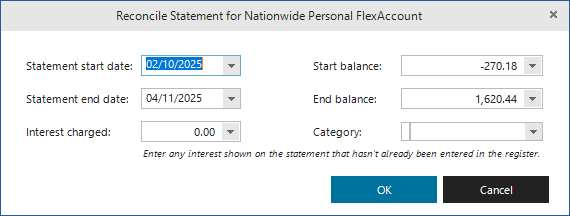
This allows you to enter the start and end amounts from a bank or credit card statement, along with the associated dates. You can enter any interest detailed on the statement here, if you haven't already added this to your register. Once you have the balances entered, clicking OK will highlight the selected date range in your register. It will add a checkbox against each transaction. This allows you to manually check off each transaction in your register against the transactions in your statement. If your start or end balance do not match the targets, balance correction transactions will be added to adjust, making it clear how far off target you are.
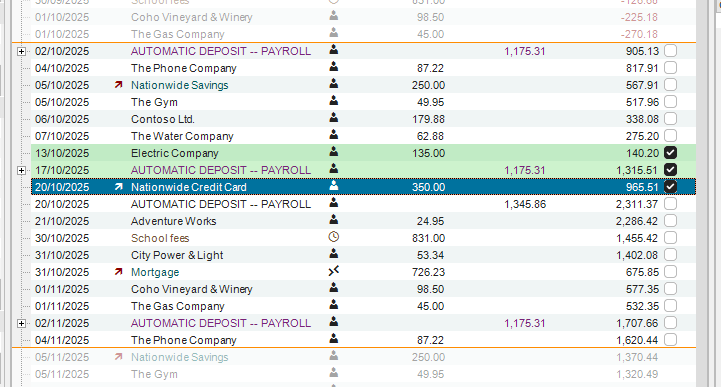
In the statusbar at the bottom of the screen, a summary of the selected transactions is displayed:

By checking off the items like this, it should become easy to see any discrepancies between your register and your statement. Any transactions that are missing can be added, any additional transactions can be moved or removed, and it should be straightforward to bring them in sync.
When you are reconciling an account, a new context-sensitive tab will appear:
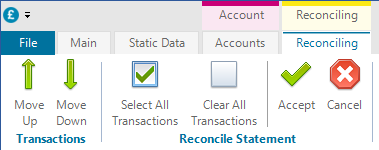
This allows you to clear all the selections within the date range, select them all, move transactions up and down, accept the changes or cancel the reconcile.
Accepting the changes will mark each transaction that is checked as Reconciled. If all transactions are reconciled and the end balance matches your target end balance, the reconcile point will be automatically set at the end transaction.
Cancelling the reconcile will remove any balance corrections, and clear the selection.