Open Banking
Open Banking
Maxim Money is currently Open Banking Ready. This means it is fully linked up to an Open Banking data provider, and the functionality is complete. However, the service is not yet live. This is for two main reasons:
- The service costs a significant amount of money. We need to wait until we have sufficient demand for the service to make this financially viable.
- We still need to complete final verification and obtain sign-off.
Access to the service will be subscription based, that is, we intend on charging a small monthly fee for providing this service. This is to cover the ongoing cost from the data provider for allowing us to use this service.
Connecting to a bank
Once you have an Open Banking connection, the first thing you need to do is connect to a bank.
Open Static Data > Institutions. Right-click in the main grid and select Add Institution. Give it the name of your bank. You now need to link this institution to an online bank, so click the Add Connection button. (If this button is disabled when you have an institution selected, this means you do not have an active Open Banking connection.)
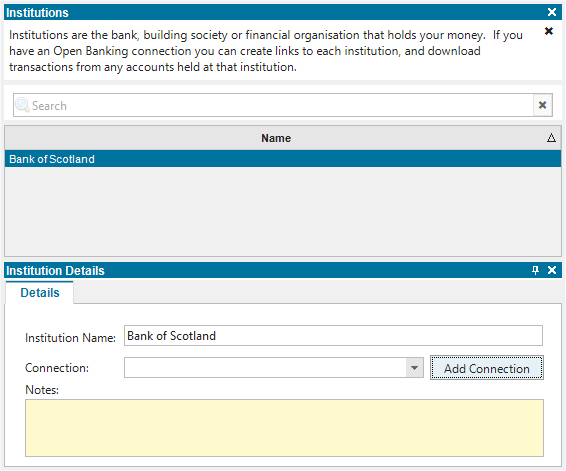
This will redirect you to our Open Banking partner, Salt Edge, in your internet browser.
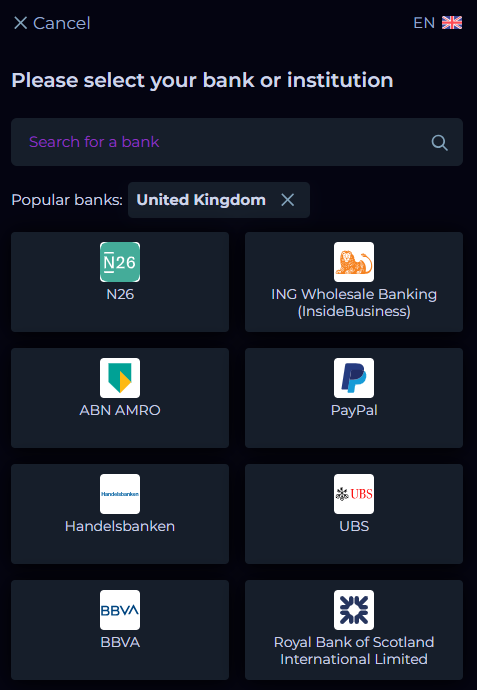
Click into the search window, and type the name of your bank. Select your bank from the drop-down list. This should then bring up a screen like so:
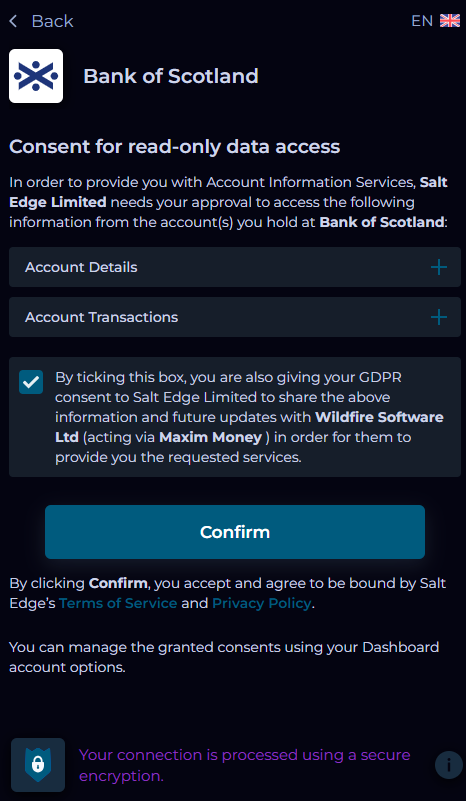
Tick the consent box, then click Confirm.
This will then redirect you to your own bank website, where it will prompt you for your banking credentials. Once you are logged in, it will ask you whether you are happy to provide the read-only transaction data to Maxim Money. This screen will vary from bank to bank, but it should be fairly straightforward.
Once you have approved access, you will be returned to the Maxim Money website. When you see this, you can close the browser, and return to Maxim Money.
You should now see a new entry for your bank in the Connection drop-down, and the button should change to Disconnect:
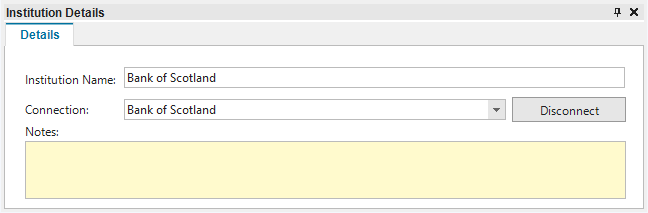
Your bank is now connected to Maxim Money!
To link your online bank to one of your Maxim Money accounts, open one of the accounts that you hold with this bank, and go to the Details tab. Select the institution you created above from the drop-down list. You should now see the Connected Account drop-down activate, and you should see all the bank accounts you hold with your bank. Select the one that corresponds with your account.
Your account is now ready!
Downloading
Once your account has been linked to an institution that has an open banking connection, you should see a new button in the main Accounts toolbar.

Clicking this button will automatically download transactions from your bank account, into your Maxim Money account transaction register. These can be matched against manual or scheduled transactions in the same way as imported transactions.
Transactions
There are two types of transactions that come down from Open Banking; Downloaded and Pending.
- Downloaded transactions are complete and verified.
- Pending transactions have been authorised by your bank, but not yet settled. This means the amounts for these transactions have been held, but they haven't officially left your account yet. This process usually takes 1-3 business days. Under certain circumstances, pending transactions can still change.
Maxim Money periodically checks for new transactions in the background with the banks you have connected. If new transactions are found, these will be highlighted in your Accounts list by displaying a small dot against your bank balance. (We may add an option in the future to automatically download these into your register.)
Disconnecting
You can disconnect from any bank at any time, by selecting the institution in the institutions list, then clicking on the Disconnect button. This will remove the open banking connection, and revoke the read-only access. You would need to re-authenticate with your bank to re-enable the connection after doing so.