Layouts
Layouts
The layout of windows within Maxim Money is completely flexible, allowing you to view multiple windows simultaneously, for example, different account transaction registers side-by-side, with charts, calendar and portfolios arranged around them.
When a window opens, it will automatically pin itself in the main view. As you open more and more windows, they will resize and slot in alongside each other. Closing a window will allow other windows to take up the available space.
You can drag any window by its title bar. As you drag the window around the main form, a series of little blue icons will appear. These show you the areas where the window can be dropped:
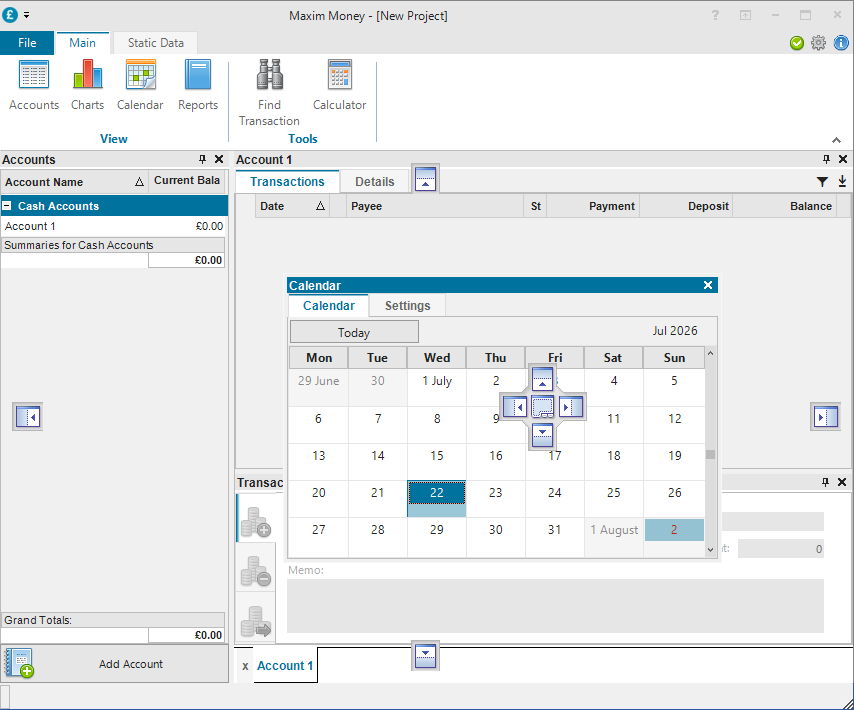
The ones at the outer edges of the main form will dock the window to the top/right/bottom/left of the main form. This window will be fixed in height or width, so that if you resize your main window, the window will not resize.
If you drop the window on one of the inner four icons, the window will split the existing window in two and slot the new one into place. This window will resize automatically to take up the available space if you resize the main window.
If you drop the window on the centre icon, the new window will cover the existing window, and each window will be accessible by clicking on a tab, which will appear.
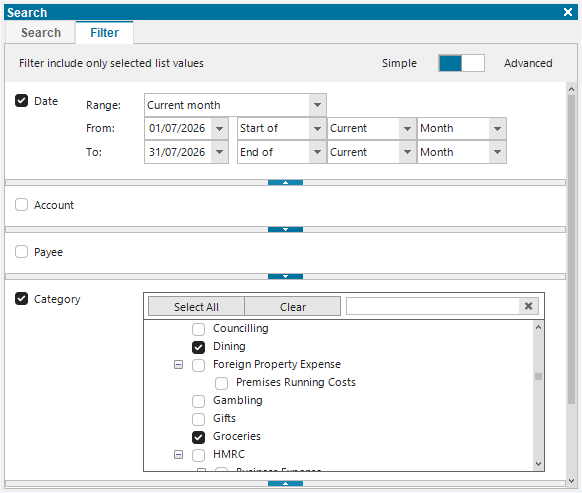
Whenever you hover over one of these icons, the new location of the window is displayed as a preview in blue:
In addition to this, each window has a pin icon. Unpinning the window will cause it to collapse onto the side. This saves space, but allows you to access the window easily by clicking on the tab. It will stay out for as long as you keep the mouse pointer over the window. As soon as you move off it, it will collapse again. You can pin it back into the main window by toggling the pin icon once more.
Overall, this system allows you to keep open the things that are important to you, or wish to monitor longer term.