Importing Data
Importing Data
Maxim Money currently supports importing from MNY, OFX and QIF files. These are the most common file formats when downloading statements from online banking or other finance applications.
New Projects
If you are starting a new data file and transferring data from another application, the easiest way to import your data is to simply select Import... from the File menu.
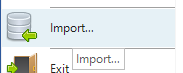
This will bring up the Open File dialog, where you can select the file you wish to import. Click Open to begin the import process. This will import all transactions from the file, and will automatically create all accounts found in those transactions. If the import only contains a single account, any accounts referenced in transfers to/from this account will also be created, and you would need to import further files into those accounts to recover all the transactions.
You can also drag-and-drop OFX and QIF files into the Accounts list within Maxim Money. This has the same effect as using the Import menu, except you don't need to select the file.
Importing into Existing Accounts
To import data into an existing account, either use the Import... menu as above, or you can drag-and-drop the file directly into the account register. The advantage of dragging and dropping directly onto an account is that this makes it clear which account you wish to import to.
If you attempt to import transactions and the account cannot be determined, Maxim Money will display the import dialog like so, where you can confirm which account you wish to import into.
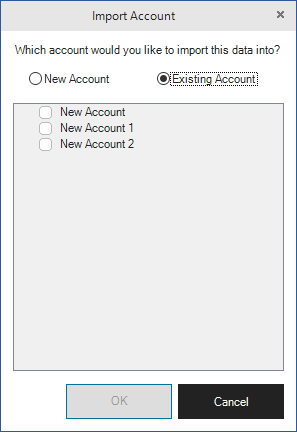
If the account you would like to import to does not appear in this list, make sure you have the account type set correctly. For example, if you are attempting to import Credit Card data, the Import Account screen will only offer you Credit accounts.
NB. If the currency of the account differs from your system base currency, it's best to set this on the account before you import the data. This will ensure any transfers between accounts pick up any exchange rates when assigning a value to the other account.
If you import data into an empty account, the status of each transaction will be set to Imported. However, if transactions already exist in the account, the status will be set to Newly Imported. This then allows you to reconcile the newly imported transactions against any that might already exist in the register.
Importing Portfolios
Maxim Money can import portfolio data from QIF files. However, there are several stages to this.
- Create a new portfolio (right click in the Accounts List and select Add Portfolio)
- Give your portfolio a name, and select the currency for the portfolio. Selecting the currency is important before you import data, because QIF format does not specify currency. Therefore, all securities imported will default to the portfolio currency.
- Select the Holdings tab, and drag and drop your QIF file into the Holdings view. This should import all the securities and transactions.
- Microsoft Money does not export Stock Splits in QIF files (even though the file format supports this), so if any of your balances are incorrect, check to see whether there were any splits on your investments. Microsoft Money displays this by adding a lower case s after the price in the Investment Activities view. To manually add the stock split, see Investment Portfolios.
- Maxim Money will create a currency cash account within the portfolio, which the transactions are linked to (invested from).
- Import any cash accounts for the Portfolio separately.
- Drag and drop the cash account in the Accounts list onto the Portfolio in the accounts list. This will prompt you to merge the imported account with the created account. Once done, the cash account total should match that from your previous application.