Setting up your MTD Business
Setting up your MTD Business
To access your business details, click on the HMRC icon in the Main toolbar. If you have multiple businesses, the HMRC button will be a dropdown, allowing you to select which business you want. If you just have one, it will open automatically.
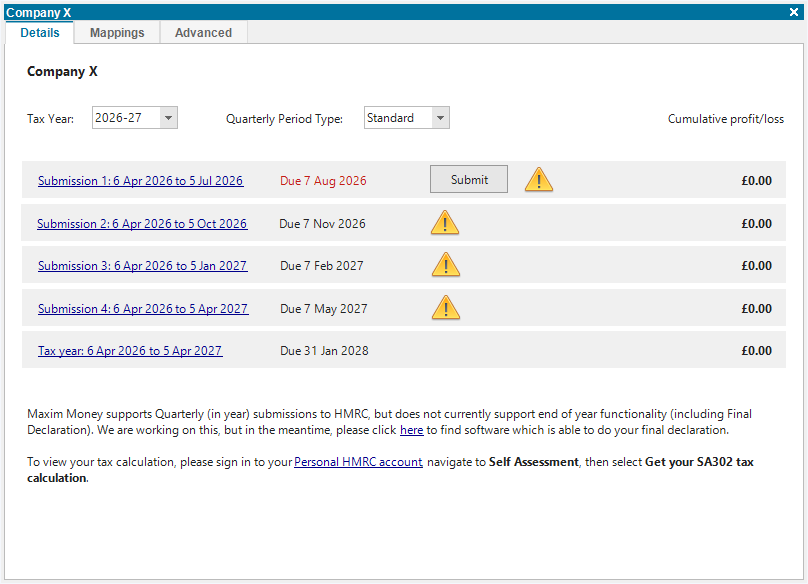
This screen is your summary screen which shows you your quarterly summaries for the selected tax year. This is the main screen for the business, and this is where you will submit your quarterly reports from.
You should see a yellow exclamation mark against each quarterly submission. If you hover over the exclamation, you will see that it doesn't know which accounts are relevant for this business.
There are 2 main things you need to set up:
Accounts - You need to specify which bank accounts are linked to this business.
Click on the Mappings tab. At the top of the screen you will see an Accounts list. You can filter the list by typing into the Search box. Select all bank accounts that you use for this business.
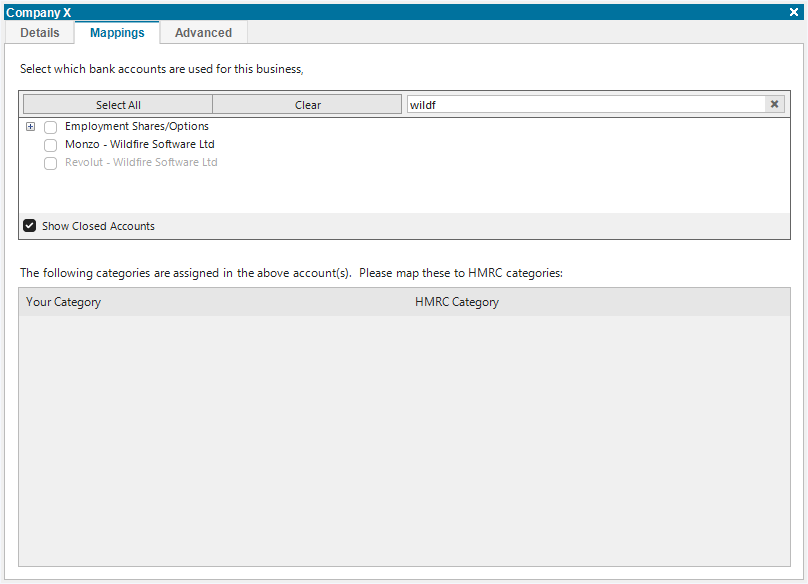
Categories - You need to specify how to allocate your transactions
Once you select the accounts, a list of all the categories you use in these accounts will be listed below. (If you switch back to the Details tab now, you will see that the warning triangles still exist, but the reason is now to do with filters.)
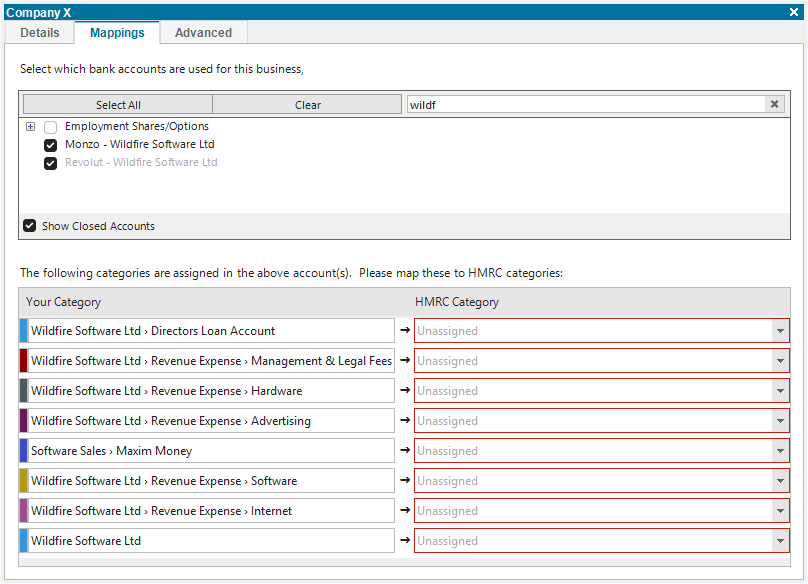
HMRC requires your finances to be reported in a strict set of categories. You need to tell Maxim Money how it should map the existing categories you use, to the categories required by HMRC.
You will need to map each category, in order for Maxim Money to know how to allocate the transactions in your nominated bank accounts.
Anything that is not assigned to an HMRC Category will not be sent. However, you will be warned that you have transactions that are not assigned to a category. In order to prevent the warning, you must mark these transactions as being Excluded.
Excluded is a special category, where anything assigned to this will be excluded from the report. It is essentially a way of saying you know that these transactions are not to be sent to HMRC.
So for example, if you use your bank account for both business and personal transactions, you can map any personal transactions to Excluded.
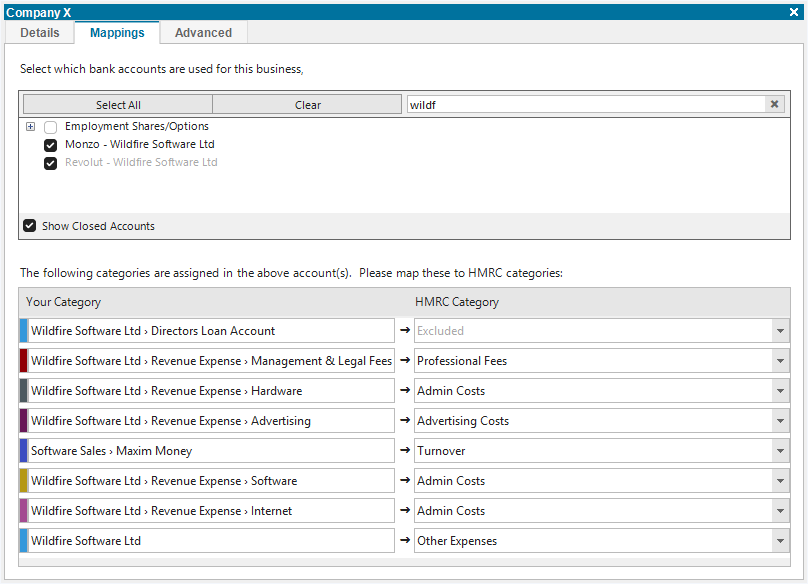
Once all categories have been mapped, you can now go back to the Details tab, and you should find that the warning triangles have gone, and all transactions are accounted for.
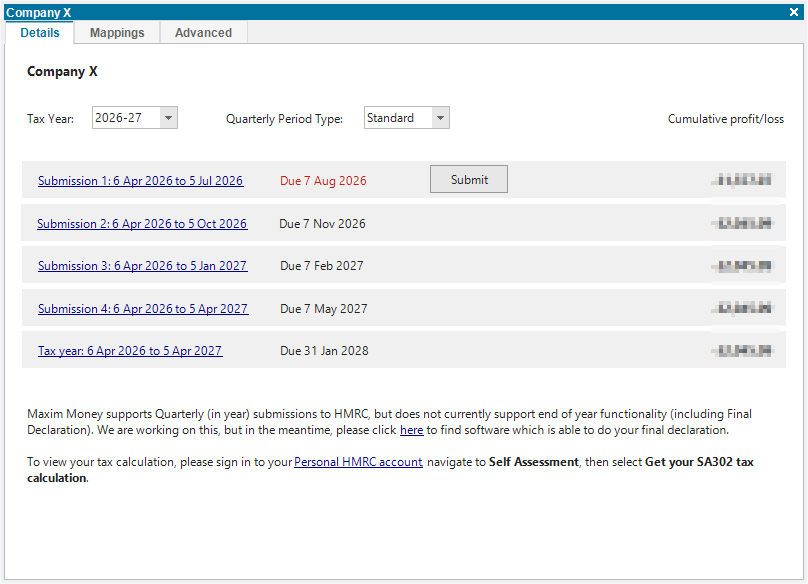
You can click on the Submission date links at any time. This opens a report which shows you a breakdown of what is included in that quarter. All transactions (except for any that have been excluded) will now be displayed and grouped by the HMRC categories.
Now that is done, all you need to do is continue to keep track of your transactions within Maxim Money, categorising them as you go. The quarterly totals will continue to update.
Advanced
If you have a very straightforward set-up, you can just leave it at that. But it may be the case that your transactions do not fit neatly into the above mappings.
If you need to have more control about which transactions are assigned to which HMRC category, you can configure this in the Advanced tab.
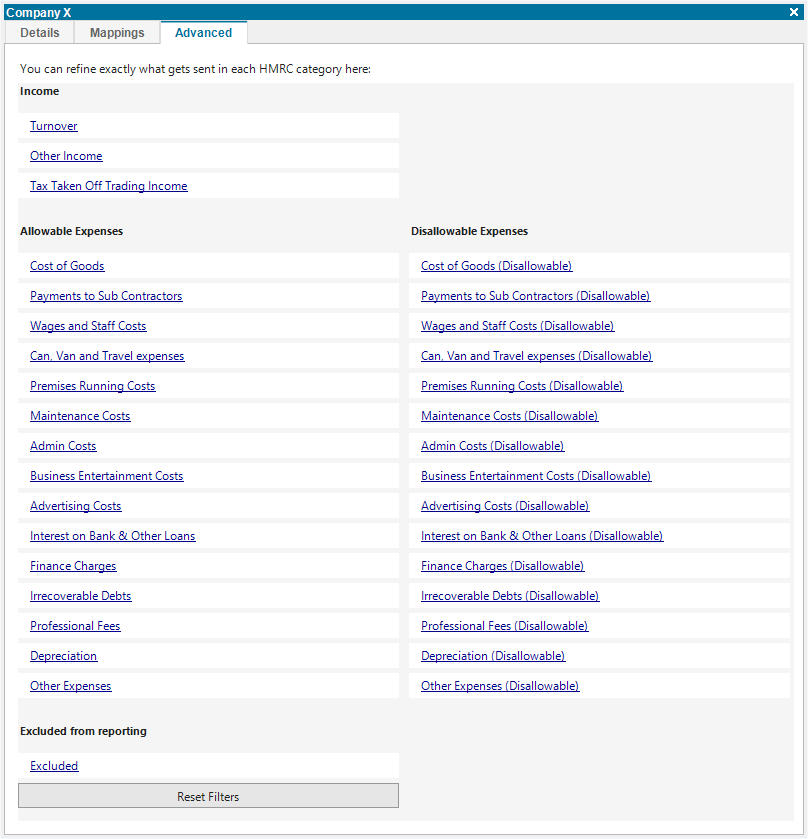
Here, you will see all the HMRC categories that are relevant for the business type (i.e. Sole Trader, UK Property or Foreign Property).
The way Maxim Money maintains the HMRC mappings, is by creating a separate transactions filter for each category. In most cases that filter will be a one-to-one or many-to-one mapping from the categories you use on your transactions. But you can fine-tune this filter however you wish.
Clicking on any category link will bring up the filter definition, like so:
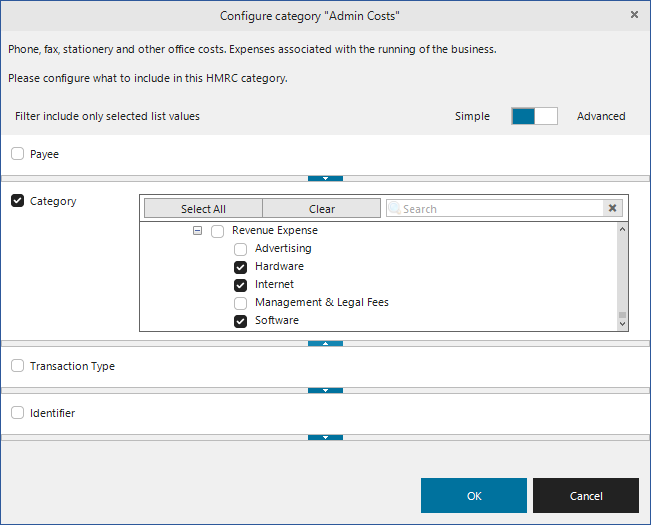
So in this example, we can see that the Admin Costs filter includes the three categories we mapped above on the Mapping tab.
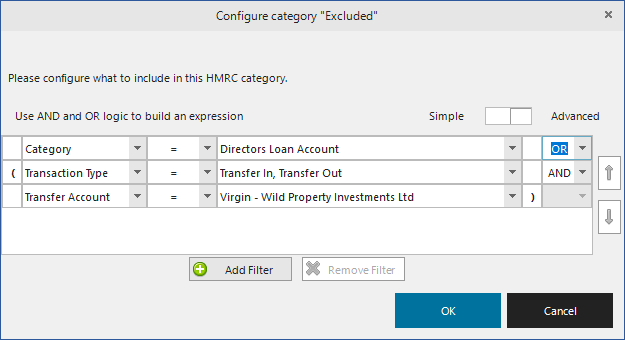
Another example, might be if you transferred funds between accounts. If they are transfers, but don't have a category, they would appear as Unassigned in your breakdown. In order to exclude these from your report and prevent the warning, you would need to enhance the Excluded category, to include Transfer transactions.
You can exclude these by changing your Excluded filter from Simple to Advanced and adding them like so:
If for any reason, you wish to clear all your mappings and start again, you can click on the Reset Filters button. This will wipe out any customisations on your filters and let you start afresh.
Next step: Submitting your first Quarterly Update