Reconciliation
Reconciliation
Whenever you import data into an account with existing transactions, the new transactions will be assigned the status Newly Imported and will appear in the register in bold. If you select any of these transactions, Maxim Money will enable the Reconcilation features with the following menu:
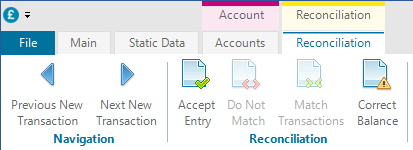
The Previous and Next buttons allow you to quickly navigate between any unchecked newly imported transaction.
If the newly imported transaction does not clash with any scheduled or manually entered transaction, you can click Accept Entry. This will change the status of the transaction from Newly Imported to Imported.
If your register did already contain a transaction which was subsequently imported, you need to match these transactions. There are two ways to do this. Whenever you select a transaction in the register, Maxim Money will check to see if it thinks any other transaction should be matched with it. It does this based on various factors such as date, amount, name and status. If it thinks there's a good chance the two transactions should be matched, it will highlight the other transaction in the register, like so:

If you agree that these transactions are the same and should be matched, you can simply click on the Match Transactions button. This will remove the duplicate transaction from the register, and update the transaction with the most relevant data from the two being merged.
If you do not want to match these transactions, and you want to prevent Maxim Money from suggesting these two transactions should be matched, you can click on Do Not Match. This will prevent these two transactions from being offered to merge.
Alternatively, if you hover over the suggested transaction for matching, two additional icons will appear to the right of the payee name.

These have the exact same function as the two icons on the main toolbar, but save having to move the mouse around so much when you are working on the register.
The second way to match transactions is to simply select both the ones you want to match (you can drag the mouse to select multiple rows, or hold down the Shift or Ctrl button whilst clicking the mouse). If it is possible to match the transactions (based on their status) then the Match Transactions button will become enabled.
The Correct Balance function in the Accounts menu can also be very useful when reconciling, as you can enter any known amounts on certain dates, and this will show you the difference between your register and your bank statement, making it much easier to identify which transaction(s) need to be modified.